Get started with Untilt on iPhone in under a minute
There's always more worth reading than there is time to read it. You still read the things you love. Untilt is for the rest: the articles you'd like to know about and never get to. Scroll through one for a few seconds, send it over, and Untilt reads it for you. You get the summary, the key points, and notes on what the piece does well and what to watch for. Got a question the summary didn't cover? Ask Untilt. It read the whole thing.
There's nothing to set up inside Untilt. It plugs into the Screen Recording control your iPhone already has, and it works with anything you can read on your phone: Safari, a news app, a newsletter in your email. This guide is for iPhone. Android works differently and gets its own guide. Here's the whole flow.
Step 1: Add Screen Recording to your Control Center
Untilt records from the same control iOS uses for screen recordings. It takes less than 10 seconds to add it your control center and you only do it once.
- Swipe down from the top-right corner of your screen to open Control Center.
- Long-press anywhere on the background to enter edit mode, then tap Add a Control at the bottom.
- Screen Recording is most likely on the top section. Just tap it to add it. If it's not, then search for it using the search bar at the top of your screen.
- Tap anywhere to exit edit mode.
Screen Recording is one of Apple's own controls, not an Untilt one. You won't find Untilt in the control list, and you don't need to. It shows up in the next step.
Step 2: Record your scroll straight to Untilt
This is the everyday part, and it's deliberately boring.
- Open the article, then swipe open Control Center and long-press the Screen Recording control.
- Pick Untilt from the list and tap Start Sharing. After the countdown, you're recording.
- Scroll quickly through the article. You don't have to make out every word; a quick and steady scroll is all Untilt needs.
- When you reach the end, tap the red indicator at the top of the screen to stop.
- Send it and move on. You'll see Sent to Untilt. A minute or two later, depending on the article, a notification tells you the gist is ready.
The one thing to get right: scroll quickly but steadily. Untilt can read faster than we can, but if you're flicking the screen, it won't make out the words. Use the gif above as a guide to how quickly to scroll.
A few things worth knowing:
- A plain tap on the control still records to Photos. Untilt stays picked in the menu, so it's always long-press, then Start Sharing.
- On older versions of iOS the button says Start Broadcast. Same thing.
- Recordings stop on their own at three minutes and still get sent. If it's taking that long to scroll through an article, you're scrolling too slow.
- If you're signed out or offline when you stop, the recording waits. Open Untilt once you're back and it sends itself.
Step 3: Read your Untilt article
When the notification lands, open it and you'll see something like this:
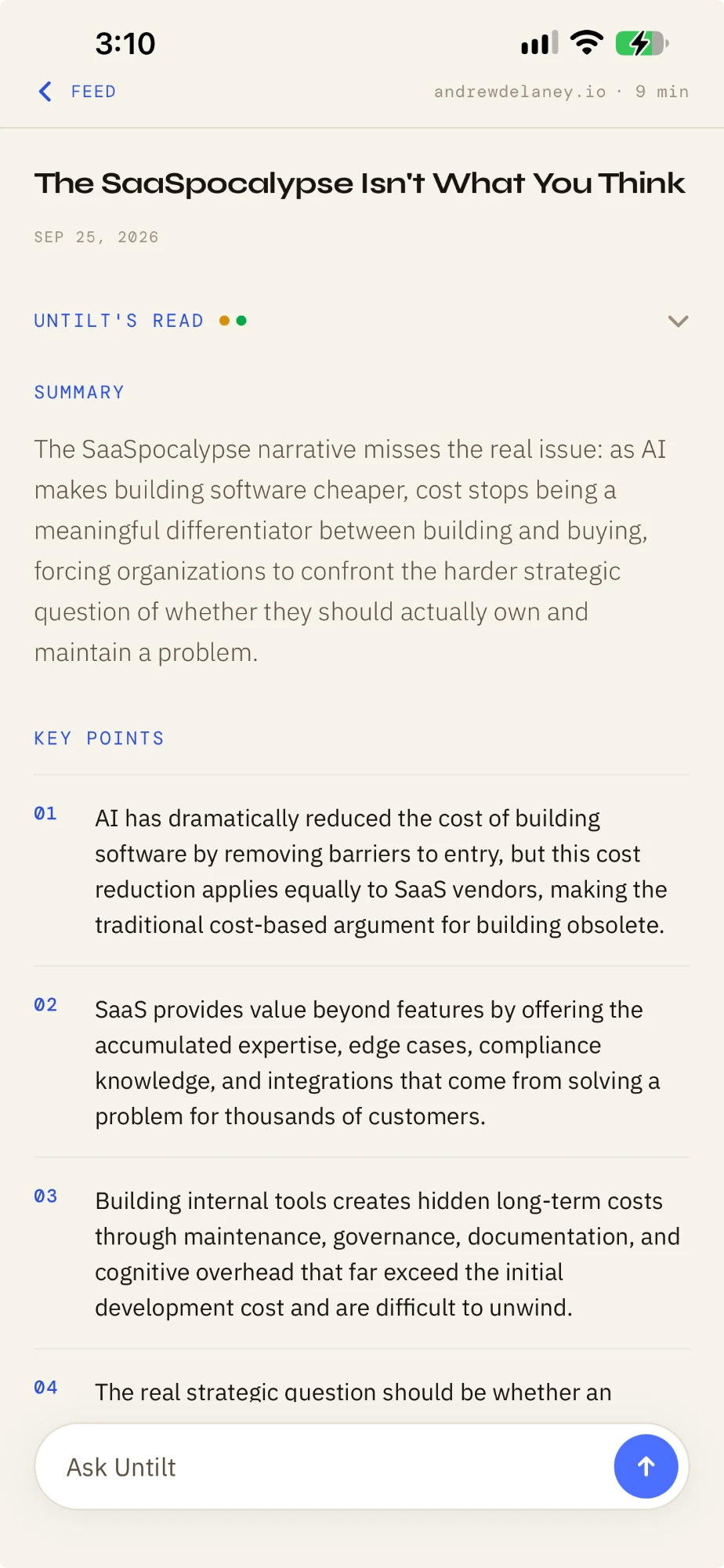
- Summary gives you the piece's actual argument in a few sentences.
- Key points break out the claims worth remembering, one by one.
- Guardrails sit tucked below, collapsed until you want them. They're notes on how the article makes its case: a green dot for something it does well, like an author arguing against their own interest, and a yellow dot for something to watch, like heavy emotional language or a claim with nothing behind it. Most articles get a mix. They matter less for a source you already trust and more for a blog you've never heard of.
- Ask Untilt is there for whatever the summary didn't cover. It read the whole article, so ask it anything.
That's the whole loop: long-press, Start Sharing, scroll, stop. Read the things you care about. Untilt the rest.
Untilt is in beta right now, and if you're reading this, you're one of the people helping shape it. Found something confusing? Tell me. That's exactly what this phase is for.